
How can we help?
Everything OffYaGo does, explained in plain words. Planning a trip, what premium is and how to ask for it, how the AI help works and the fair use policy behind it.
Start here
- Getting startedWhat OffYaGo isOffYaGo turns "we should go" into a plan: pick places, let the app lay out the days, and change your mind whenever you like.
- Getting startedPlan your first tripSix steps from your first saved place to a day-by-day schedule. Tap through them.
- Premium and AI helpWhat premium isPremium is OffYaGo's free, by-invitation tier. It switches on the AI help; everything else in the app is free for everyone.
- Premium and AI helpFair use of AI trip planningAI answers are shared and cost real money, so there are limits. This is what counts as fair use, the limits you can meet, and what you'll see when you reach one.
- Premium and AI helpHow to ask for premiumOpen Profile, tap Request premium access, tell us what you'd use it for and how you'll help, pick a date and send.
Watch
All topics
Nothing matches. Try a different word, or write to us.
Getting started
What OffYaGo is, how to sign in, and what you can do without an account.
- What OffYaGo isOffYaGo turns "we should go" into a plan: pick places, let the app lay out the days, and change your mind whenever you like.
- Plan your first tripSix steps from your first saved place to a day-by-day schedule. Tap through them.
- Signing in and having an accountBrowsing needs no account. Trips, saved places, trip mates and Profile do, and the only way to sign in is Sign in with Apple.
- What happens the first time you open the appA short notice about where information comes from, an optional globe to say where you're going, and, if you sign in, an optional lock and notifications.
- What you need to use OffYaGoAn iPhone, a recent version of iOS, and a connection. OffYaGo is free, with no ads and no purchases.
Finding and saving places
Explore, search, place pages and the + button that adds a place to your trip.
- ExploreThe first tab. Your next trip, ready-made guided days, and places worth your time, narrowed to where you're going.
- SearchType a word to turn it into a filter, browse by kind of place, and get back to what you looked at recently.
- Reading a place pageWhat each part of a place's page tells you: the tip, highlights, best time to go, opening hours, the map, and what's around it.
- Saving places AccountThe bookmark saves a place to your library. A place only reaches a trip from your saved places list.
- Guided daysReady-made single days, each a few stops in a sensible order, drawn on one clock so you can compare how full they are.
- Pre-built tours in SearchA switch in Profile that decides whether Search also lists ready-made tours. It starts off.
Planning a trip
From saved places to a day-by-day plan: areas, Auto-plan, re-planning and editing.
- From saved places to a trip AccountEvery trip is built from your saved places. Start a trip, add places to it by area, and send one back whenever you change your mind.
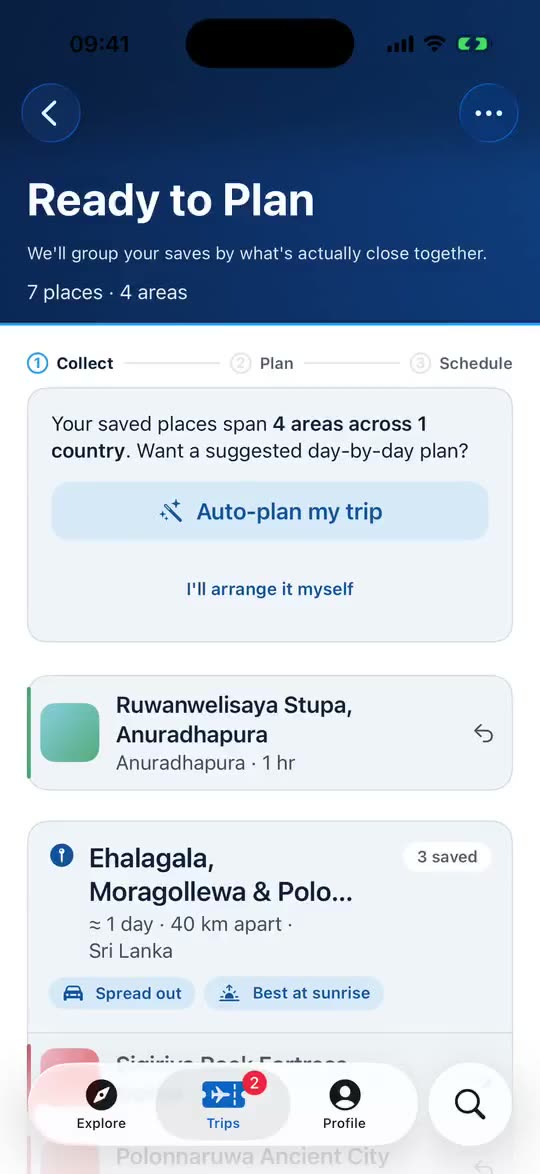
- Areas, and what "Waiting to be planned" means AccountThe app groups your places into areas by how close they are, and plans a trip one area at a time.
- Auto-plan and Re-plan AccountLet the app lay your places across days in three quick questions, and re-plan any time something changes. A re-plan lays the whole trip out again.
- Build your schedule AccountBuild my schedule puts real clock times on every stop after checking opening hours and travel times. Until then times are marked as drafts.
- Export your itinerary as a PDF AccountA printable itinerary with a cover, a trip-at-a-glance table, where you'll stay, each day, and good-to-know notes. Share it, print it or save it to Files.
- Editing a trip AccountRename it, change its dates or length, reorder areas, add or send back places, invite mates or delete it. Then re-plan.
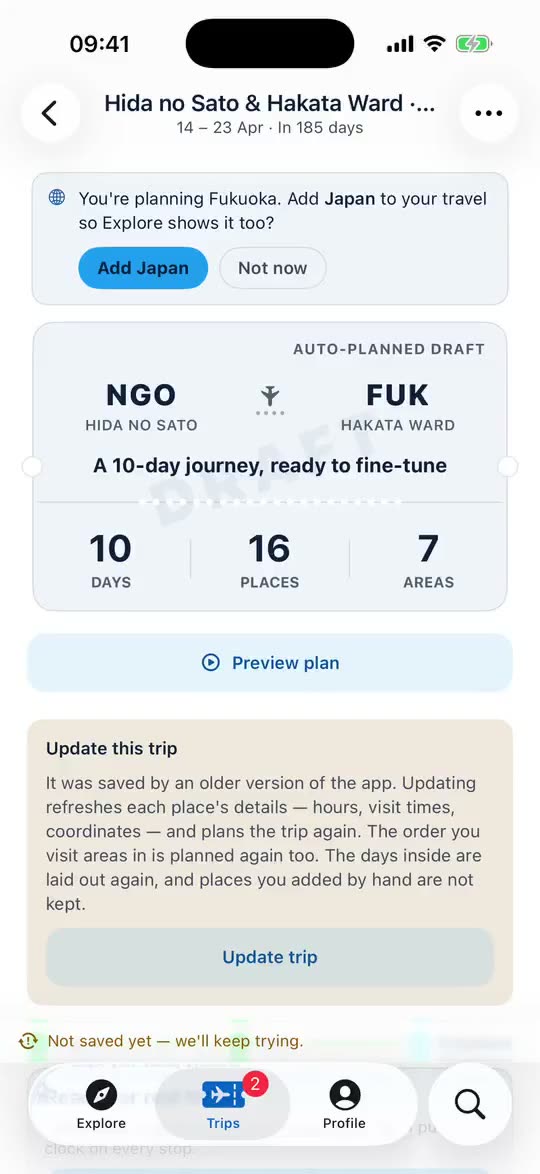
- The trip screen, from top to bottom AccountThe ticket, the three steps, the Departures board, How you move, and What this trip already knows, each explained.
- Why a place isn't on a day, and why a day looks empty AccountThe usual reasons a saved place stays out of the plan, how the app tells you, and what to do about it.
Your days and schedule
Reading a day, getting between places, lunch, free time, hotels and cost.
- Reading a day AccountHow a day is laid out: the header, your day in order, the time between stops, lunch, where you sleep, and what the notes at the bottom mean.
- Where you sleep AccountEach base of your trip has a place to stay suggested near your stops. Real places, but no prices, no ratings and no booking.
- How you move AccountEvery journey on the trip in one place, with where each time came from and how to read the flight, rail, road and walking legs.
- Travel days and rest days AccountA day that moves you somewhere looks a little different: a photo of the vehicle, the journey at the top, and a light plan around it.
Trip mates
Plan with friends: your mate code, invitations and who can change what.
- Planning with trip mates AccountOne person organises and plans. Friends join by invitation, see who's going, and add places. Here's the whole picture.
- Your mate code AccountA temporary code you make in Profile and read to the friend who's organising. It works for 24 hours, and you can stop it any time.
- Inviting a trip mate AccountFrom your trip's menu, enter your friend's mate code, check their name and send the invitation. It travels inside the app.
- Accepting an invitation and joining a trip AccountAn invitation arrives as a notification and as a card in the app. Accept it and the trip appears in your Trips tab.
- What trip mates can and can't do AccountMates read the whole plan and add places, marked with their name. The organiser plans, schedules and decides.
- Trip mate limits AccountHow many people can share a trip, how long codes and invitations last, and why those limits exist.
Your account and privacy
Profile, preferences, notifications, App Lock, running cost and deleting your account.
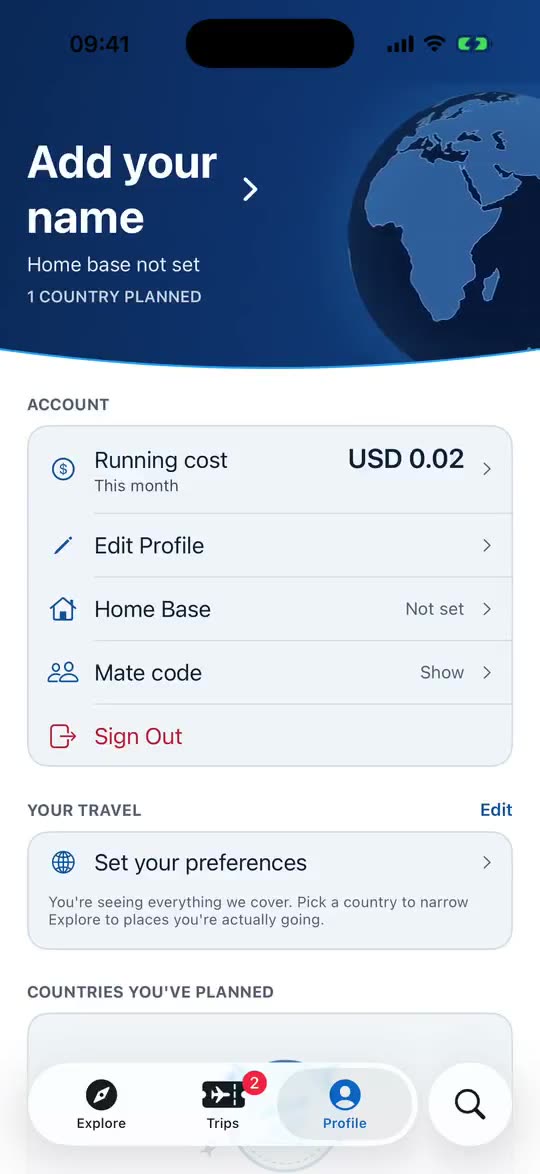
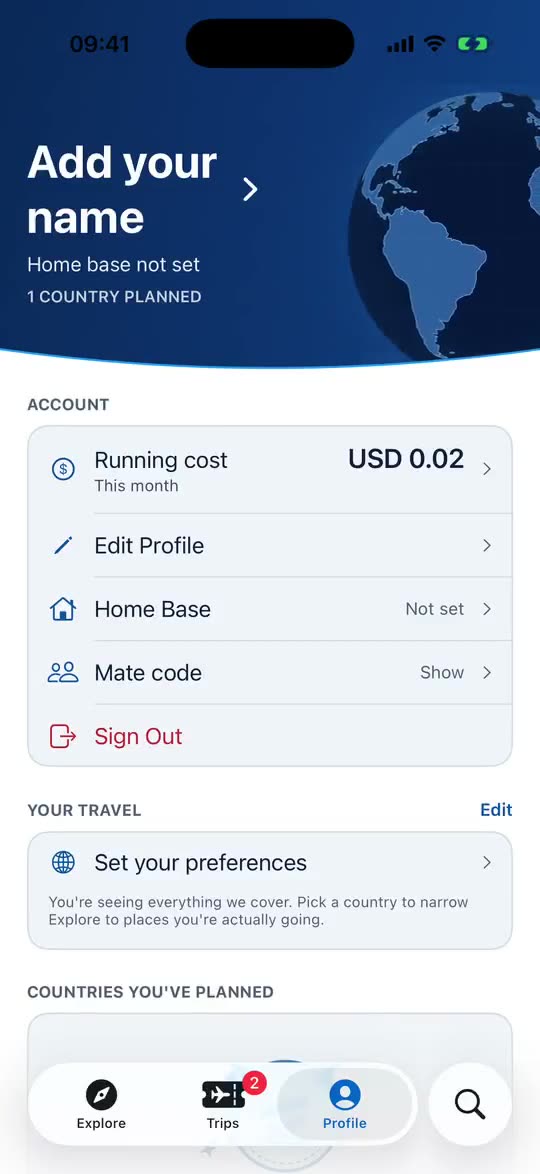
- Profile, section by sectionWhat's on the Profile tab, from your name and home base to appearance, pace, premium, security, support and legal.
- Home Base AccountThe city you start from. Auto-plan uses it to work out your flights and the order to visit areas in.
- Your travel preferencesThe countries and interests you chose. Explore narrows to them, and you can change them whenever you like.
- Your globe and country stamps AccountThe globe on Profile pins the countries you've picked and stamps the ones where you've planned a day.
- Notifications AccountOnly two kinds: service messages about the app or your account, and trip-sharing messages. Never offers or promotions.
- App Lock: PIN, Face ID and Touch ID AccountLock the app behind a PIN, with Face ID or Touch ID as a shortcut. Locking doesn't sign you out.
- Running cost, line by line AccountWhat every line on the Running cost screen counts, how it's priced, and why it's an estimate you don't pay.
- Deleting your account AccountDelete your account inside the app. We confirm with Apple, erase your account and its data, and revoke OffYaGo's Sign in with Apple access.
- Start Over on This DeviceClears this phone's preferences, sign-in, App Lock and cost history and returns to the Welcome screen. It doesn't delete your account or anything saved online.
- Your privacy in briefWhat OffYaGo collects, what it doesn't, who receives it and how to delete it. The Privacy Policy is the full statement.
Fixing problems
When something looks wrong, is missing or does not respond.
- Not saved yet — we'll keep tryingWhat the banner at the bottom of the screen means, and what to do if it doesn't go away.
- Sign-in problemsSign in with Apple not working, signed out unexpectedly, or can't get back in? Start here.
- A place I want isn't in OffYaGoThe catalog is curated, not exhaustive. How to look wider, and what happens to a place you add that we don't have.
- Trip mates not working? AccountInvitations that don't arrive, codes that won't work, and places that don't appear. Check these first.
- My plan looks wrong AccountA day too full, too empty or in a strange order? Why it happens and what to change before you write to us.
- Contacting usA person answers. Email or WhatsApp is fastest. Say what you were doing and your app version.
Words we use
A short glossary of the labels you will see in the app.
Still stuck?
Write to us and a person answers. Tell us what you were doing, and the app version from Profile → About if you can.