
Auto-plan and Re-plan
Let the app lay your places across days in three quick questions, and re-plan any time something changes. A re-plan lays the whole trip out again. Needs an account
Auto-plan turns the places on your trip into a day-by-day plan. It runs on your phone, from the rules of how a day works, and it doesn't need AI. It does need a connection to save the result to your account.
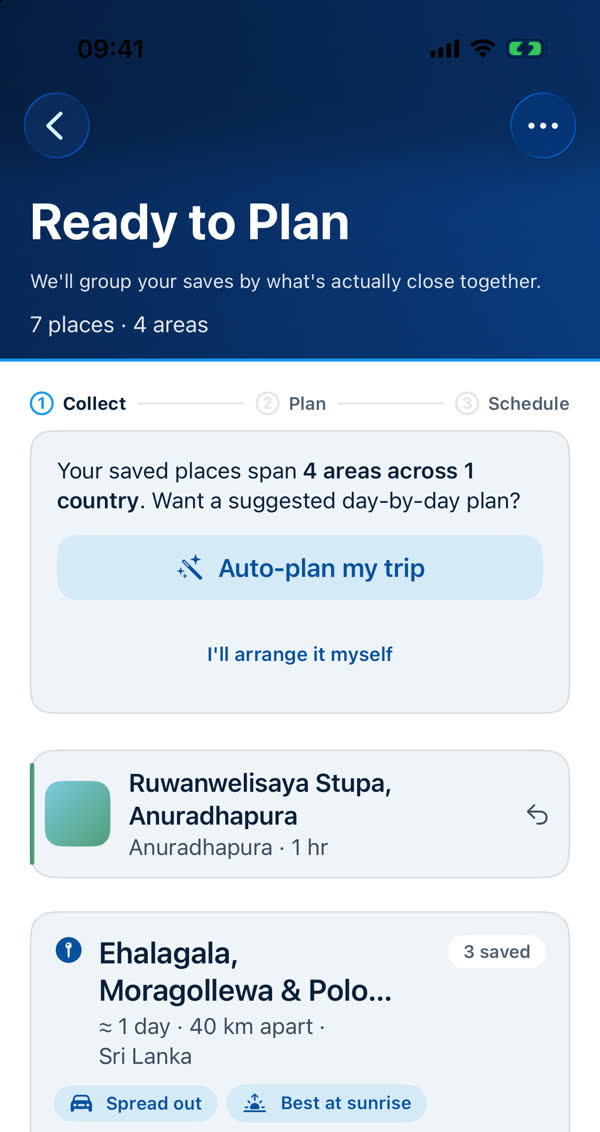
Start it
Open a trip with saved places on it. The screen reads "Ready to Plan": "We'll group your saves by what's actually close together." A card says "Your saved places span 4 areas across 1 country. Want a suggested day-by-day plan?" Tap Auto-plan my trip. (Only one Auto-plan button is ever on screen.) If you'd rather lay the days out yourself, tap I'll arrange it myself.
Three short steps
The next screen is headed "Auto-plan your trip" with a summary such as "7 places · 4 areas · 5 days", and three named steps across the top. You can move between them. A tick appears on each you've finished.
- When you're leaving. "When are you leaving home? It's the only date we need — we'll work out the flight, when you land, and how much of day 1 is really left." Choose Select date. If you know it, you can also add when you land and your return flight. Setting your home city in Profile lets the app work out your flight. See Home Base.
- The order. "Does this order look right?" The app proposes the order that makes the shortest trip and explains any choice it made, for example that one area is far on the other side of another and will be folded into the move rather than doubling back. Move areas with the arrows. Where an area is a long drive out and back, a button such as Stay there instead offers a night there. Then tap Looks right — continue.
- How long. "How long are you staying?" The stepper starts at what your places actually need, for example "At least 5 days for 7 places and 4 areas." Add days if you'd rather take it slowly. A note says when day 1 is kept light because the app doesn't know your arrival time yet.
Jump to a step
Read the transcript
- This trip has seven saved places in four areas. Tap Auto-plan my trip, and the app groups what's close together and lays it across days, on your phone.
- First, when are you leaving home. It's the only date we need. The app works out your flight, when you land, and how much of day one is really left.
- Then the order. The app proposes the shortest trip and tells you why, for example folding a far-off area into the move, instead of doubling back. Move areas with the arrows, or choose Stay there instead.
- Last, how long you're staying. It starts at what your places actually need. Add days if you'd rather take it slowly.
- Once you've set the leaving date, the button reads Auto-plan my trip. Your phone does the arranging, and nothing needs AI.
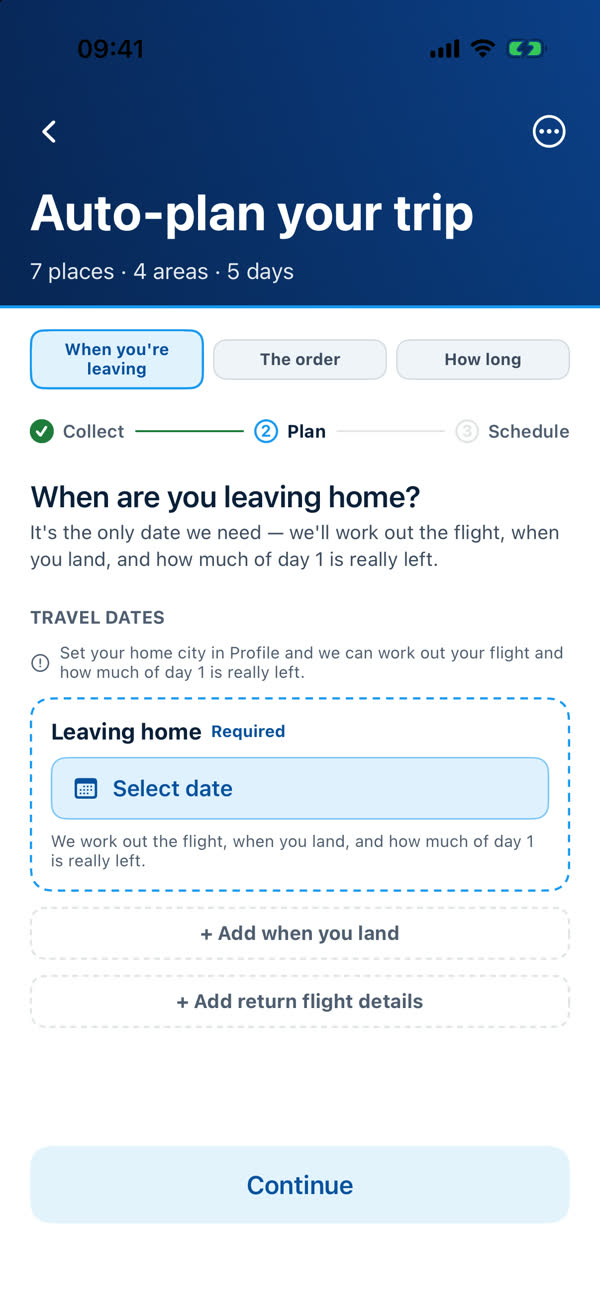
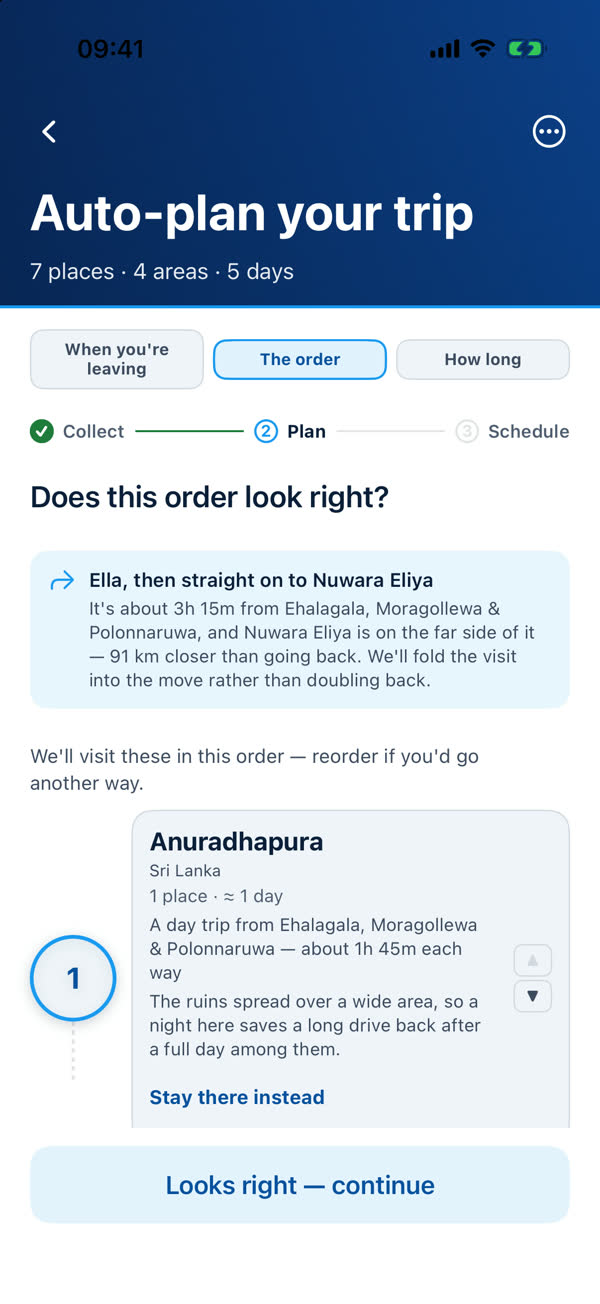
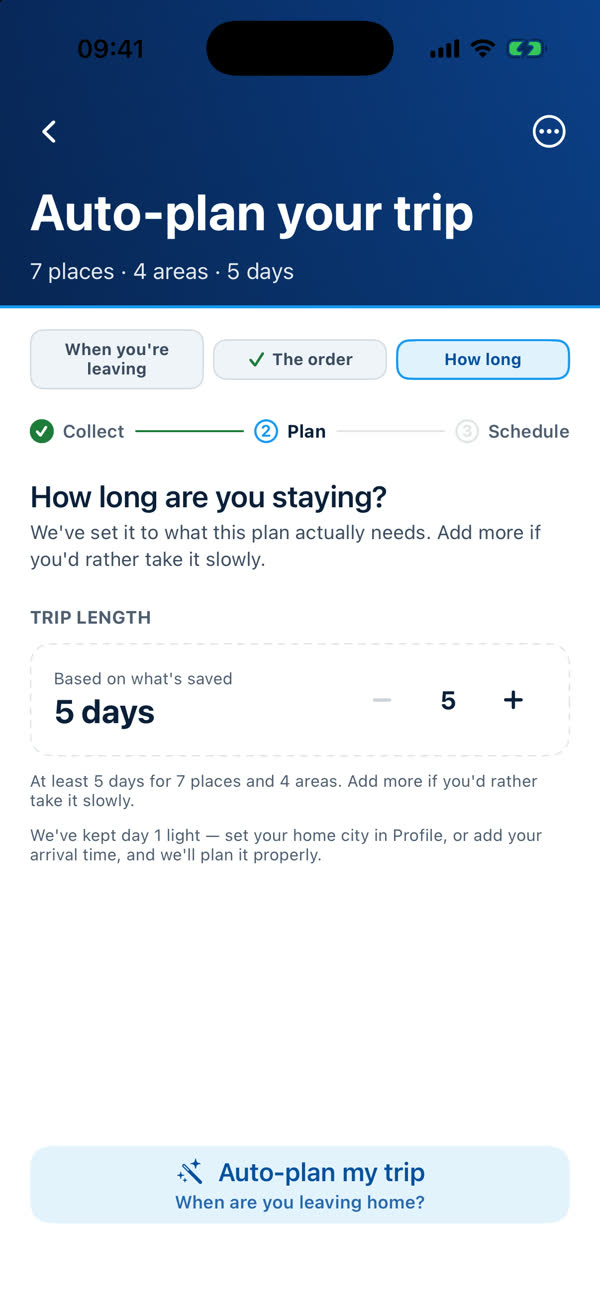
The final button reads Auto-plan my trip. Until you've set the leaving date it says "When are you leaving home?" instead. While it works, a panel says "Planning your trip" and "Your trip can't be changed while this runs."
What it does
- Groups places into areas and visits them in the order you confirmed.
- Spreads each area over days: about four stops a day, fewer when the travel is long, with a proper lunch in the middle.
- Works out the journey between areas. A long flight earns a rest day, and a long journey (more than about three and a half hours) leaves at checkout and counts as a light day.
- Puts each stop at a sensible time of day from opening hours and the best time to visit.
- Checks the finished plan against its rules and tells you in plain words what it couldn't fit. See Why a place isn't on a day, and why a day looks empty.
It never invents a flight, and it doesn't pretend to precision it doesn't have. A plan before the schedule is built shows the order and rough lengths, not clock times.
With AI assistance on
If you're premium and have AI assistance on, Auto-plan may also ask the AI a few narrow questions. Your phone checks every answer and keeps its own plan if one fails. See How AI helps when you Auto-plan.
Re-plan
Add places, change the dates, change the length or move an area, and the trip card offers Re-plan instead. A re-plan lays the whole trip out again. Every place stays on the trip. A stop you placed by hand keeps its place in the trip but not its day or slot, and the times of a built schedule go out of date.
So the app asks first when a re-plan would lose something: "Re-plan this trip?" with Re-plan and Cancel. It doesn't ask for the first Auto-plan, or for Try again after a failed run.
| Button | When you see it |
|---|---|
| Auto-plan my trip | A draft trip with places and no plan yet |
| Re-plan | A trip you've edited, or with places waiting |
| Build my schedule | A planned trip, ready for real times |
| Update times | A scheduled trip you've changed, or one that needs its times refreshed |
| Try again | A schedule run failed |
A trip planned by an older version
If a trip was saved by an earlier version of the app, it shows Update this trip: "Updating refreshes each place's details — hours, visit times, coordinates — and plans the trip again. The order you visit areas in is planned again too. The days inside are laid out again, and places you added by hand are not kept." Update only when you're ready.
If it can't fit everything
You may see places that aren't on any day, or an empty day with an explanation. See Why a place isn't on a day, and why a day looks empty. Add days with Change trip length, or leave places out. See Editing a trip.
Something missing or wrong on this page? Tell us. A person reads every message. Updated 11 October 2026.