
Editing a trip
Rename it, change its dates or length, reorder areas, add or send back places, invite mates or delete it. Then re-plan. Needs an account
A trip is never locked. Open it, tap the ••• button at the top right, and the menu lists what you can change. The menu changes with the trip: a draft shows only the first few items below, and a planned trip adds the dates, order and length.
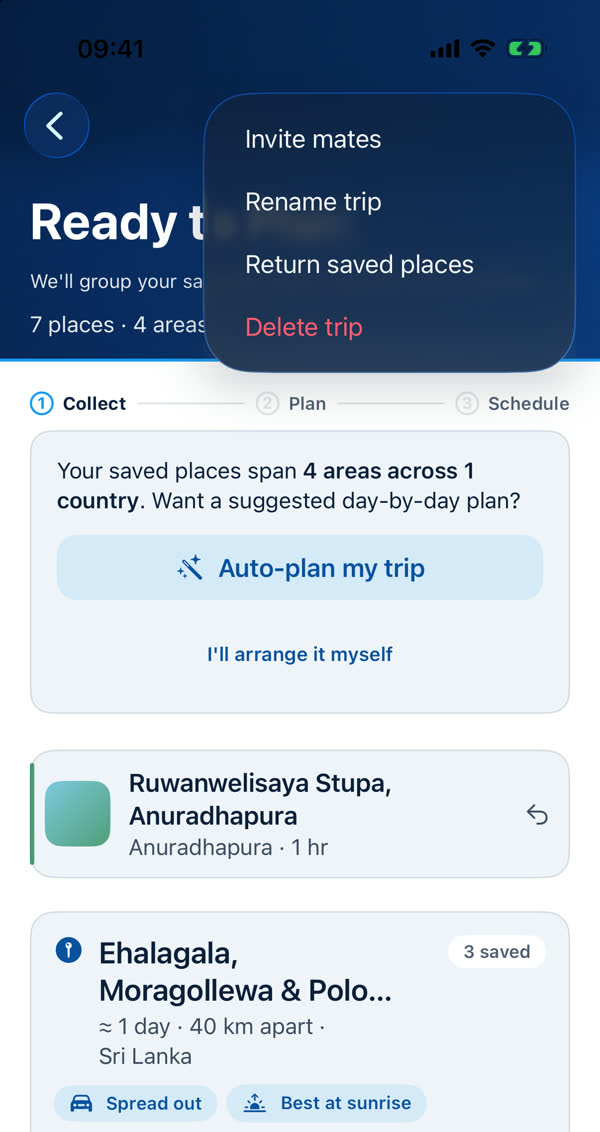
| Menu item | What it does |
|---|---|
| Invite mates | Opens "Invite a mate" so a friend can plan with you. See Inviting a trip mate. |
| Rename trip | Gives the trip a new name. |
| Change dates | Sets or changes when you leave home. It's the only date the planner needs. Your days and everything on them stay as they are until you re-plan. |
| Reorder areas | Changes the order the areas are visited in. A re-plan then lays the trip out again. |
| Change trip length | Adds or removes days. The app won't go below the fewest days your places can fit in. |
| Return saved places | Sends waiting places back to your saved list. Shown when places are waiting. |
| Check this trip online | Premium with AI assistance on. See Check this trip online. |
| Delete trip | Deletes the trip, after asking you to confirm. |
Adding places
Save places, then add them to the trip from your saved list. They wait under Waiting to be planned until you re-plan. The Find more places row takes you to search. See From saved places to a trip.
After you change something
Most changes don't alter your days until you re-plan. The trip card then says what's waiting and offers Re-plan. A re-plan lays the whole trip out again and asks first when it would lose something. See Auto-plan and Re-plan.
If it says "Not saved yet"
Trips live on our servers, so an edit needs a connection to save. See Not saved yet — we'll keep trying.
Something missing or wrong on this page? Tell us. A person reads every message. Updated 11 October 2026.