
Build your schedule
Build my schedule puts real clock times on every stop after checking opening hours and travel times. Until then times are marked as drafts. Needs an account
A trip has three steps, drawn as a rail at the top of the trip: Collect your places, Plan the days, then Schedule the times. The Schedule step is where the plan gets clocks.
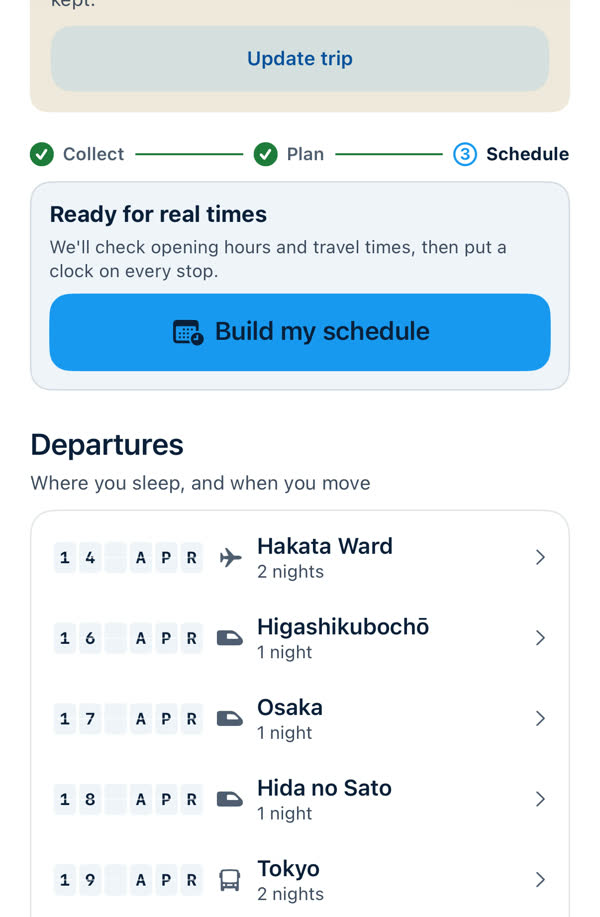
Build it
- When your plan looks right, tap Build my schedule on the card that says "Ready for real times".
- The app checks opening hours and travel times, then puts a clock on every stop. With premium and AI on it also checks your trip online first. See Check this trip online.
- When it finishes you can read the schedule screen, and every day fills in with real times.
A schedule is made by the app, never typed in. To change times you change the plan and update.
Before it's built, times are drafts
A trip that hasn't been scheduled says so. The schedule screen is headed "Draft times · not checked", and says "Laid out from an assumed 9:00 start. Nothing has checked an opening hour or a travel time, so every time below is marked ≈." The Day screen also says "This isn't a schedule yet — your phone worked out the order on its own. Times aren't set." That honesty is deliberate: the app doesn't show a precise time it hasn't checked.
After it's built
- The trip card says "Hours and travel times checked for N stops" and the days show real times.
- If you change the trip afterwards, it says "Edited since scheduled", and the card offers Update times.
- Update times re-plans the whole trip, so you may be asked "Re-plan this trip?" first. See Auto-plan and Re-plan.
If it fails
If something stops it, the card offers Try again. Nothing about your plan changes. If it keeps failing, check your connection, then see Contacting us.
Take it with you
Once there's a schedule you can export it as a printable PDF. See Export your itinerary as a PDF.
Something missing or wrong on this page? Tell us. A person reads every message. Updated 11 October 2026.